
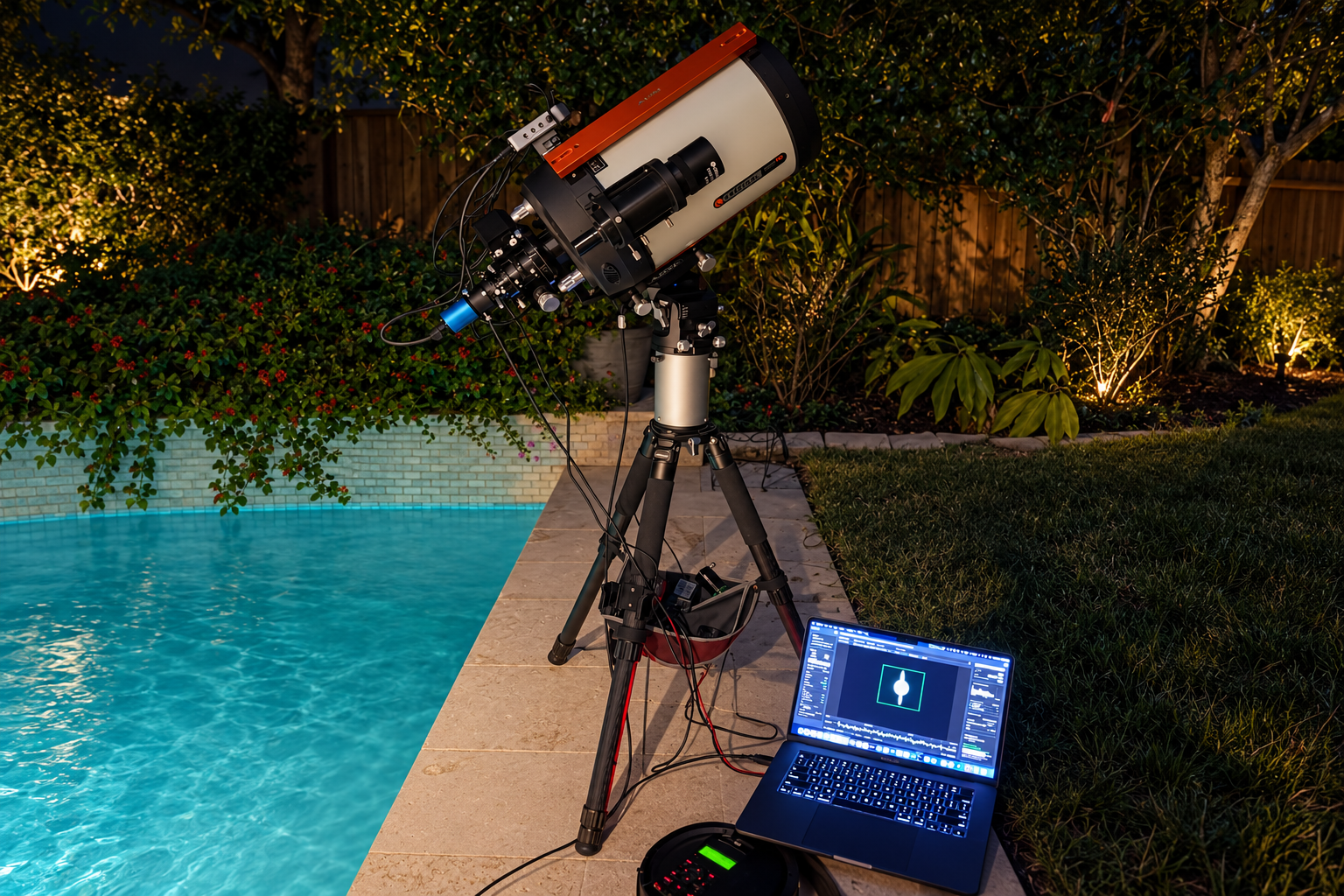
Wavelet sharpening in Strata, Mac Observatory's native macOS app for planetary, lunar and solar processing, splits a stacked image into six layers of detail, from pixel-scale texture to broad structure, and lets you strengthen and denoise each layer on its own while the GPU previews the result live. Used with restraint, it brings back the belts, crater rims and filaments that seeing spread across neighboring pixels. Pushed too far, it invents grain, halos and texture that were never in the sky.
A freshly stacked planet usually looks soft, and that's normal. Stacking raises the signal-to-noise ratio, but it doesn't restore the contrast that the atmosphere and the telescope's diffraction smeared out. Sharpening is the step that does. I build Strata, so this guide walks through its Sharpen panel control by control, with figures calculated from the same wavelet math the app runs. The reasoning carries over to RegiStax, PixInsight and other multiscale tools, and it deliberately skips "magic" presets: the right settings change with the target, the image scale, the seeing and how many frames you stacked.
What does a wavelet layer actually change?
Think of the image as a sum of structures at different sizes. Strata finds them with an à trous ("with holes") wavelet decomposition: it smooths the image with a small B3-spline kernel, keeps the difference between the image and the smoothed copy as Layer 1, then smooths again with the kernel's taps spread twice as far apart and keeps that difference as Layer 2, and so on through six layers. Whatever is left after the sixth smoothing is the residual, the broad brightness of the disc. Add every layer back to the residual unchanged and you get the original image exactly. Sharpening means adding some layers back louder than others.
Here's that decomposition run on a synthetic scan line across a soft, slightly noisy planet.
A synthetic slice across a planet: sky, limb, belts, fine texture and a little noise, then split with the same B3-spline à trous filter and Dyadic scales Strata uses.
Look at where the noise ends up. In the top rows the random grain is as loud as the fine texture. By Layer 3 the grain has mostly averaged away and the belts and limb edges take over, and the bottom row is almost entirely the disc's broad shape. That's the whole reason wavelets beat a single sharpen control: a setting strong enough to lift a narrow festoon would also lift the grain in the same layer, so you choose your scales and leave the others alone.
Strata's inspector shows the six layers as five rows, because the two coarsest rarely need separate settings.
The tap spacing is the distance, in pixels of the stacked image, between the kernel's taps at that layer. Dyadic first, then Linear.
| Row in Strata | Tap spacing | What lives there | Warning sign |
|---|---|---|---|
| Layer 1, Fine Detail | 1 px / 1 px | The narrowest edges and texture, and most of the visible noise. | Grain, speckle, a "sandpaper" sky, a hard bright rim. |
| Layer 2, Medium Detail | 2 px / 2 px | Small cloud features, surface texture, crater rims. | Crunchy detail, doubled edges. |
| Layer 3, Large Structure | 4 px / 3 px | Belts, zones, maria boundaries. | Carved-looking local contrast. |
| Layer 4, Very Large | 8 px / 4 px | Broad tonal variation across the disc. | Exaggerated belts, uneven gradients. |
| Layers 5-6, Coarsest | 16, 32 px / 5, 6 px | Large-scale brightness and the overall shape of the disc. | An artificial 3D look, a glowing limb. |
Dyadic or Linear?
The Scale Scheme control at the top of the card decides how fast the layers grow. Dyadic doubles the tap spacing at every layer (1, 2, 4, 8, 16, 32 pixels), which is the mathematically standard progression and Strata's default for planets. Linear steps by one pixel at a time (1, 2, 3, 4, 5, 6), which matches the spacing RegiStax uses and is Strata's default for the Moon and Sun. Because each layer is smoothed on top of the one before, the reach of a layer adds up quickly.
How far from a pixel each layer's cumulative smoothing reaches, in pixels of the stacked image.
In practice, Dyadic spreads six layers from the finest texture all the way out to the shape of a small planet's disc, so each row does a distinct job. Linear packs all six into the fine-to-medium range, where a lunar or solar surface keeps most of its detail, which gives you closer control over the structure that matters on an extended target. Strata picks the starting scheme from the imaging target on a fresh capture, and a processing profile records whichever one you choose. If you're coming from RegiStax and your old settings feel wrong in Strata, check the scheme first.
Start with a stack worth sharpening
Sharpening can only raise contrast that the stack already recorded. It can't repair motion blur, a missed focus, clipped highlights or a capture so long that the planet rotated during it. Before you open Sharpen, make sure the selection was sensible (my guide to how many frames to stack has a simple test for that) and that the brightest parts of the disc aren't clipped.
Keep an unsharpened 16-bit TIFF of the stack. Judge sharpening at 100% (Command-Option-1 shows true 1:1 pixels) as well as fit-to-window (Command-0): the first shows noise and ringing, the second shows whether the whole disc still looks natural. If fine structure comes and goes between stacks of the same capture, fix the capture, focus or frame selection before adding more sharpening.
A stack made elsewhere works too. Strata opens TIFF, PNG, JPEG and single-image FITS files straight into Sharpen, so you can use it to sharpen an AutoStakkert! stack without restacking anything.
A tour of Strata's Sharpen panel
The Sharpen inspector is a column of cards, top to bottom in the order the processing runs. Here's what each one does.
Strength reads as a multiplier
Each row's Strength is shown as the factor that layer is multiplied by when it's added back, so 1.00 means "leave this layer alone," not "a little sharpening." The slider underneath is exponential: its full travel runs from 1.00 to 27.00, with each third of the way multiplying the gain by three. So the left end of the slider makes small changes and the right end very large ones.
The number the field shows for points along the slider's travel. Type a value, or use the arrow keys for steps of 0.01 (0.10 with Shift).
There's no right number to aim for, and I'd be wary of anyone who gives you one. Which layer holds your finest real detail, and how hard it will take sharpening, depends on your pixel scale and the size of the image. On my Saturn at native sampling, Layer 1 carries real detail. Drizzle the same capture 2x and every feature spans twice as many pixels, so Layer 1 is left sharpening the pixels themselves and the work starts at Layer 2. A setting copied from someone else's image only works if their sampling matches yours.
What Denoise does
The Denoise slider under each Strength (0 to 1) blends that layer toward a Gaussian-smoothed copy of itself before the layer is amplified, with the smoothing sized to the layer's own scale. At 0 the layer passes through untouched; at 1 it's fully smoothed. Because it acts before Strength, a modest Denoise on Layer 1 lets you keep more Strength without the grain coming up with it. Push it too far and small real features go waxy and merge into flat patches. The usual order is to strengthen first, then add just enough Denoise to calm the noise you revealed. Starting with heavy Denoise can wipe out the small structures you're trying to recover.
What Passes does
Passes re-runs the entire wavelet pass on its own output, up to 30 times, so the gains compound. A common idea is to keep each layer's Strength low and raise Passes instead of pushing the sliders. I wanted to know what that actually buys you, so I calculated the response of Strata's filter to detail of different sizes.
How much Strata's wavelet filter multiplies detail of each size, with only Layer 1 raised. Higher means more sharpening at that scale.
The honest answer is: less than you might think. Five passes of Layer 1 at 1.20 come out almost exactly where a single pass at 2.50 does on the finest detail (1.2 to the fifth power is 2.49), and they're only slightly more concentrated on that finest scale. Where Passes earns its place is when several adjacent layers are active, because their gains stack across the overlap and build a broader, steeper lift than any single row can. Either way the gains multiply, so Strength and Passes together climb fast. When the limb starts to ring, back one of them off.
Luminance or RGB?
Luminance mode, the default, sharpens and denoises only the brightness of the image, so the color stays as it was and color noise doesn't get amplified. That's the right choice for nearly every color planetary image. Its Include Channels checkboxes let you leave a channel out of the luminance it builds; excluded channels pass through unchanged, which helps when one channel is much noisier than the others.
RGB mode gives each channel its own Strength and Denoise, picked with the Channel control. Blue is usually the noisy one on a color planetary camera, so a common approach is to set up Red, copy it to the others with Copy Red to All, then add Denoise on Blue. For a mono SER or AVI capture Strata hides both modes, since there's only one channel to sharpen.
Micro Contrast
Layer 1 works at a one-pixel tap spacing, and that's a hard floor. On a finely sampled lunar close-up there's real micro-contrast below it. A lunar imager testing Strata reached it in Photoshop with a stack of high-pass layers, and Micro Contrast is Strata's version of that recipe: a sub-pixel high-pass pass on luminance, applied once after the engine. At 0 it's off, around 50 approximates that Photoshop finishing action, and 100 doubles it. If you catch yourself pushing Layer 1 hard for more bite, back it off and add a little Micro Contrast instead.
The people who wrote the classic wavelet guides arrived at the same restraint.
"Most of the noise will probably originate in layer 1."
RegiStax project, Linked Wavelet Layers
"Do not adjust Layers 4, 5, 6."
SharpCap's guide to processing Jupiter in RegiStax
"Gentler adjustments will help you to end up with a much more natural look."
Gary Palmer, BBC Sky at Night Magazine
A conservative method in Strata
With the controls mapped, here's the order I'd work in on a new stack.
The preview runs on the GPU, so on a typical planetary stack the Enhanced view keeps up with the slider on Apple Silicon. On a large lunar or solar frame Strata may preview a reduced-resolution proxy while you drag, and it says so with a small "Approximate preview" tag in the corner. Judge final detail once the tag is gone.
More contrast isn't more detail
The mistake I see most often is oversharpening, and it's easy to see why. Every step on a wavelet slider adds contrast, and contrast reads as detail. But a stack can only give back as much detail as the telescope captured. The aperture, how well it's collimated and how steady the seeing was set that limit before you ever opened Sharpen. Push past it and the sliders don't find more planet. They manufacture edges, texture and rings that look like detail and aren't, and the image is quietly worse even though it looks punchier.
The simulation below makes that limit visible. It knows what its planet really looks like, so it can tell you when you've recovered everything the stack holds, and the moment you start inventing. Move one slider at a time and watch the labels and the warnings. Those warnings are the things to look for in your own images, which come without an answer key.
A few things to notice. On this stack Layer 2 does nearly all the work: it reaches the sharp point at 2.00, and by 3.00 the image is further from the real planet than the unsharpened stack, even though it looks crisper. Layer 1 recovers very little before the sky turns grainy, because at this scale it holds mostly noise, the same thing you see on a 2x drizzled stack. Push Layer 2 or Layer 3 and the first warning is a dark ring at the limb. That's why I look at the limb before anything else. Compare the result with the Real planet view, too: the sharp point is less dramatic than most people expect, because the seeing took the rest.
The same thing on a real Saturn
A simulation is tidy. Here's the same progression on one of my Saturn stacks from October. Watch the space just outside the globe as the sliders go up.
Saturn on October 15, 2026, 5,747 frames at 640 × 480, sharpened in Strata with Dyadic scales and 3 Passes. Crops of Strata's canvas, unedited.
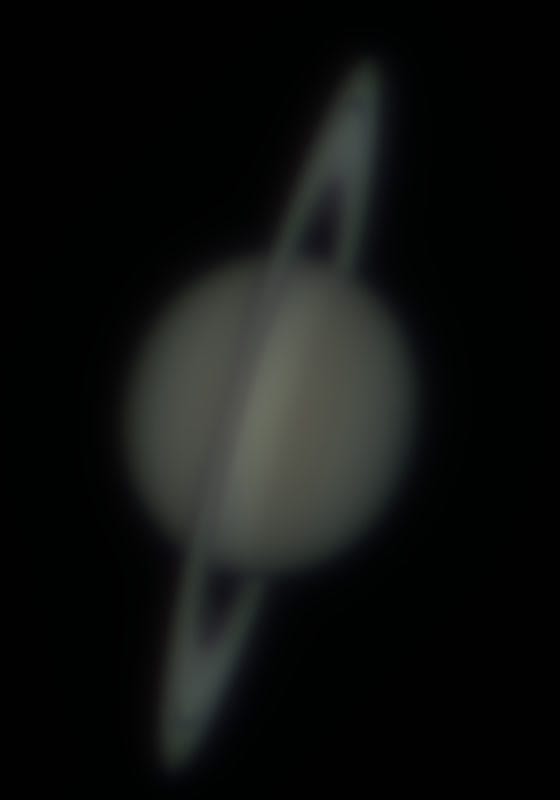
All layers at 1.00. Soft, as every stack is.
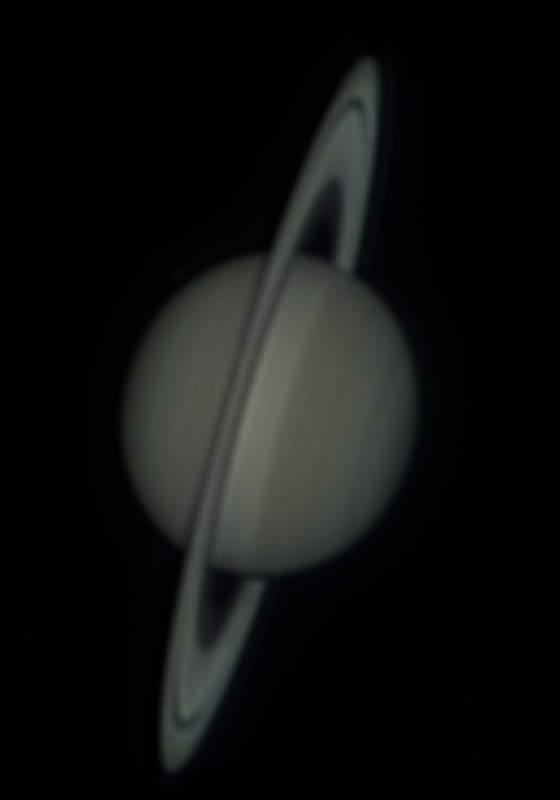
Layer 1 at 2.57, Layer 2 at 1.37. Ring structure and belts come up; the limb stays clean at normal brightness.
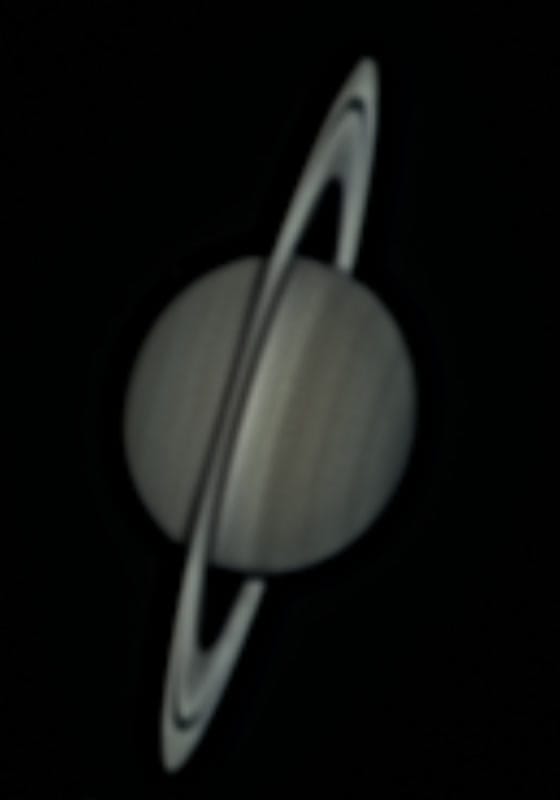
Layer 1 at 2.57, Layer 2 at 2.52. Crisper, and a dark halo now surrounds the globe and rings.
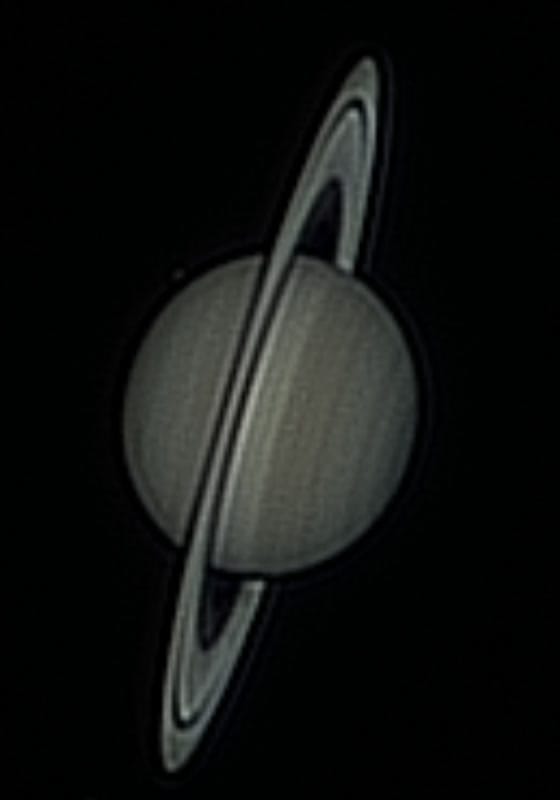
Layer 1 at 4.96. A black ring around the globe, doubled ring edges and grain across the disc. More contrast, less Saturn.
The same left edge of the globe at 2× with the shadows lifted, so the dark sky has room to show a ring. Against pure black, a moat is easy to miss.




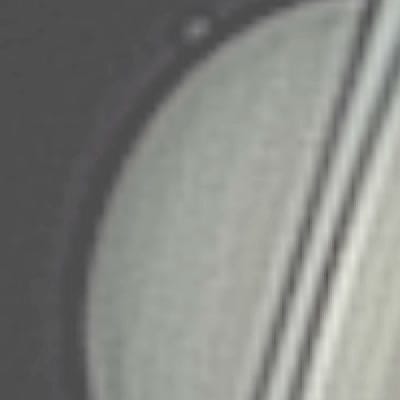
The sharp point is the frame where the rings separate and the belts come up, and nothing new appears in the sky. Push Layer 2 and a halo wraps the planet. Push Layer 1 and the image turns into an engraving: more contrast everywhere, and less of the actual planet. The brightened strip shows the first faint band already forming at the sharp point. That's where I stop, and if you can't tell, brighten a copy of your image and look at the limb.
Sharpening is only half the job. A sharpened stack still looks dim and slightly off-color. In Strata, brightness and color live in the Color phase, which comes after Sharpen, and a light hand matters there too.
The same Saturn after sharpening, working down the Color cards: Levels, Channel Alignment, Color Balance, then Saturation. Crops of Strata's canvas, unedited.
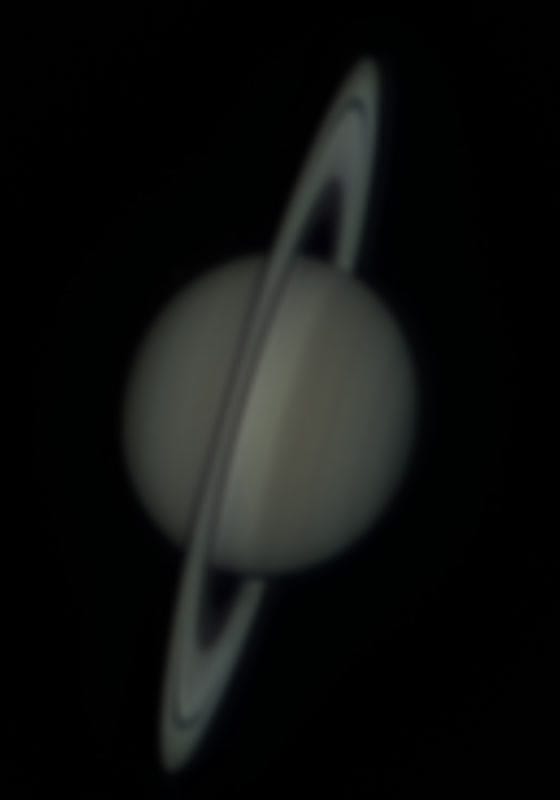
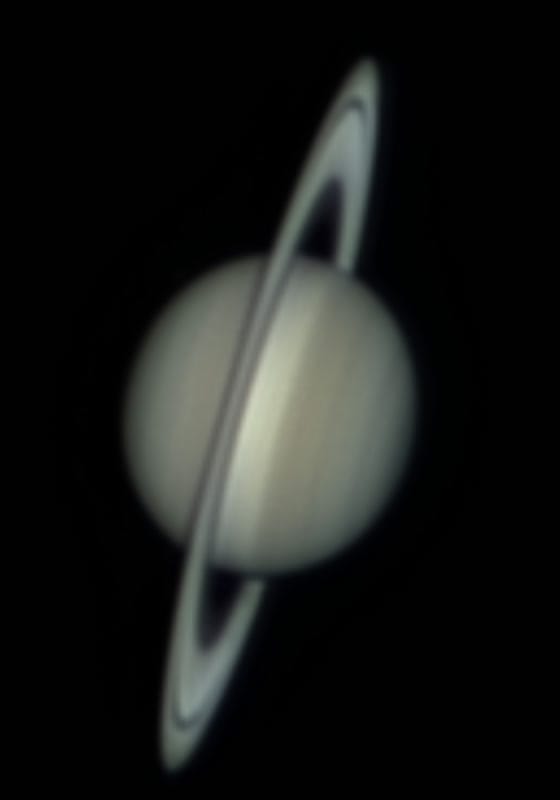
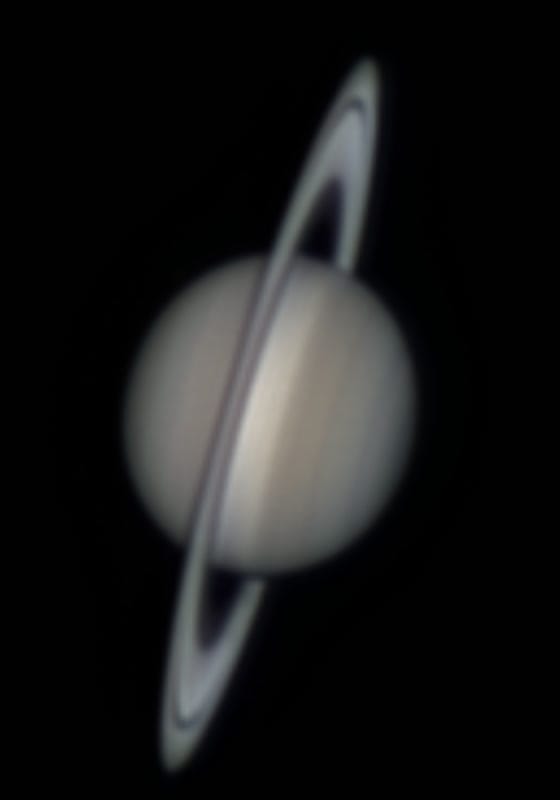
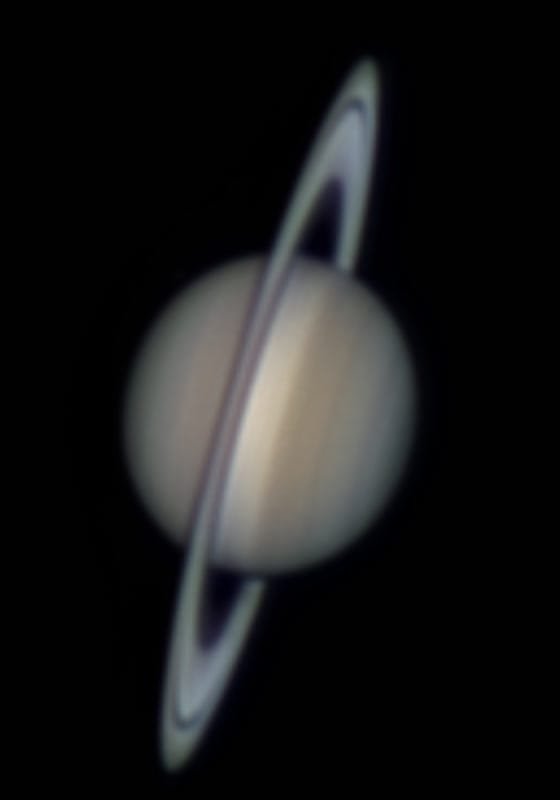
None of these steps adds detail. Levels spreads the tones the stack already has across the full range, alignment and balance correct what the atmosphere and the camera did to the color, and saturation makes the existing color easier to see. Doing them after sharpening also means you judge the limb and the ring structure before brightness and color start flattering the result.
The easiest artifact to spot is the planet limb
A planet against black sky is the strongest edge in the frame. Aggressive sharpening pushes the brightness above the disc's natural level on one side of that edge and below the sky on the other: a bright outline with a dark moat beside it. Signal-processing texts call it overshoot and undershoot. Planetary imagers call it ringing, or a halo.
Brightness along a line crossing a planet's limb, from sky (left) to disc (right), before and after Strata's wavelet filter.
The gentle setting barely moves the edge at all, which is the point: it lifts the interior detail without announcing itself at the limb. The strong one overshoots the disc by about 28% and dives well below the sky, and since an image can't go darker than black, that dip clips into a hard black ring. Earlier builds of Strata had Sky Attenuation and Limb Protection controls to paper over this. I removed them because in practice they did little, and the dependable fix is to turn down the layer that causes the ringing. If the limb rings, set each active layer back to 1.00 in turn to find the one causing it, and reduce that one. On a soft stack it's often a coarser layer than you'd expect.
Adjust for the target
Use belts, festoons, storms and albedo boundaries as your reference features. If the interior gets richly textured while the limb grows a bright outline, the fine layers are too strong. Go easy on Layer 4 and the coarse row, which turn natural gradients into hard bands.
The rings are full of narrow, high-contrast edges. Judge the Cassini Division, the ring ansae and the globe together. If the division goes unnaturally black or the ring edges double, find the layer responsible and back it off.
Lunar images hold detail at every scale: rilles, crater rims, mare boundaries. Tune on a representative area, then inspect the smooth maria. A setting that makes one crater dramatic can cover the maria in false grit. This is where Micro Contrast does its best work.
For hydrogen-alpha and calcium K, sharpen with Wavelet first, then switch the Mode menu to Solar Tone: Strata records the chain and runs the wavelets before it. For white light, stay with Wavelet; Solar Tone flattens the contrast that defines sunspots and granulation.
Solar Tone is Strata's name for Wavelet Optimized Whitening, a method published by Frédéric Auchère and colleagues in 2023 for evening out the huge brightness range of a narrowband solar image. It has its own Denoise, Tone and Background Protection cards, and it deserves its own guide. The point here is the order: detail first, then tone, so the tone step works from an already sharpened image.
Wavelets or deconvolution?
They solve related but different problems, and Strata offers both in the same Engine picker.
- Raises contrast by feature size, layer by layer
- Direct, visual control over which scales get stronger
- Per-layer Denoise right where the noise lives
- Works on any stack, with no knowledge of the optics
- Starts from a model of the blur (the PSF) and tries to reverse it
- PSF from a telescope preset, or From Equipment using your aperture and wavelength
- Fewer knobs: Airy Radius, Seeing, Passes, Noise Regularization, Mix
- Wants a high-signal stack, since it amplifies noise readily
Choose wavelets when you want to decide by eye which scales come up. Try deconvolution when your optics are in good shape, Strata knows your telescope through an equipment profile, and the stack has signal to spare. Neither is automatically safer. Both ring when pushed past what the data support, and a mild result from one beats an aggressive result from the other with Micro Contrast piled on top.
A final check before export
The best wavelet result is rarely the one that looks most dramatic while the sliders are moving. It's the one that survives comparison. Before you continue to Color:
- Switch to the Original tab, then back. The sharpened image should show the same structures more clearly, not new shapes that exist only in the processed view.
- Inspect the brightest limb, the darkest sky and one smooth interior region at 100%.
- Zoom out to the size people will actually see. If it feels brittle or harsh, reduce the strongest active layer.
- Check the color channels. Atmospheric dispersion or misaligned channels can masquerade as colored sharpening artifacts; Strata's Color phase aligns them.
- Export a 16-bit TIFF if you plan more editing, and keep the unsharpened stack beside it. With Processing Parameters left on in Export (the default), Strata writes the sharpening settings into the file's metadata, so you can see later what you did.
Once a setup works for a night's captures, save the full pipeline as a processing profile from Export. A profile records every Sharpen setting exactly as you left it, including the ones at zero, and batch processing replays it on each file from that file's own pixels. That makes it easy to sharpen a whole run of Jupiter captures identically, which matters if they're headed for an animation.

These questions come up in nearly every wavelet thread, so here are short answers.
Common questions about wavelet sharpening planetary images on a Mac.
Do wavelets create new detail?
Why does layer 1 mostly bring up noise?
Should I use every wavelet layer?
How do Strata's wavelets compare to RegiStax?
Can Strata sharpen a stack I made in AutoStakkert!?
Is wavelet sharpening hard for a beginner?
Does Strata use AI sharpening?
What to do on your next clear night
Take one good stack, sharpen it three ways (one fine layer, two adjacent layers, two adjacent layers with Denoise) and compare them in the Comparison tab at 100%. Note which layers actually held your target's detail. After a few nights you'll know where your telescope, camera and sampling put the detail, which is worth more than any preset I could give you. If your stacks are soft no matter what you do, the fix is upstream: the seeing, focus, collimation, or an IR-pass filter to steady a bad night.