
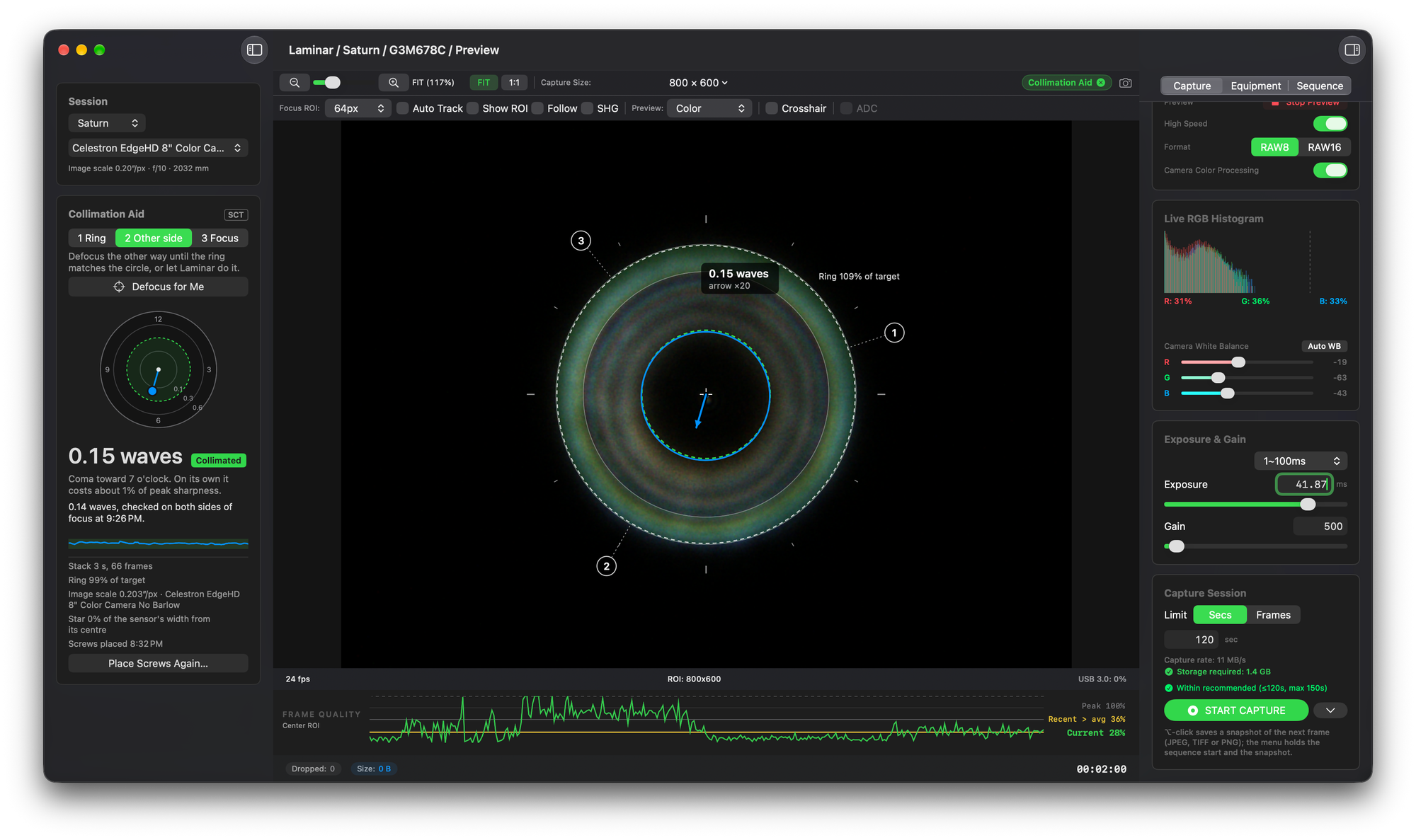
Laminar's Collimation Aid collimates a Schmidt-Cassegrain telescope from a defocused star, on your Mac. It measures how far the telescope is out of collimation in waves of coma, tells you which secondary screw to turn, which way and how far, and checks the result on both sides of focus before it calls the scope collimated. It's built into Laminar, the native macOS planetary capture app I make at Mac Observatory, and it works with Celestron and Meade SCTs, standard or EdgeHD.
Collimating by eye means judging whether a dark shadow sits a hair off center inside a ring that won't hold still. The Collimation Aid turns that judgment into a number. The first evening I used it, my Celestron EdgeHD 8 went from about 0.5 waves to 0.14, and the images I took afterward were sharper than before.
Getting there takes two parts. First the mount has to put a bright star in the middle of the camera's sensor and keep it there, and you can do that from a ZWO ASIAIR or from your mount's hand controller. Then Laminar takes over, and the steps in Laminar are the same either way. Jump to your setup below.
What do you need to collimate an SCT with Laminar?
The Collimation Aid arrived in Laminar 1.9.2. Laminar runs on any Apple Silicon Mac with macOS 15 Sequoia or later, and for collimation you'll need:
- A Schmidt-Cassegrain from Celestron or Meade, standard or EdgeHD. Newtonians and Maksutovs collimate at the primary mirror, and the aid isn't built for them.
- A USB astronomy camera from one of the five families Laminar drives directly: ZWO, Player One, QHYCCD, ToupTek or SVBONY. Mono and color both work.
- A tracking mount, and a star of magnitude 1 to 3 high in the sky. Off-axis, an SCT shows coma of its own, so the star has to sit near the middle of the sensor.
- An equipment profile in Laminar (Window › Equipment) with the telescope's aperture and focal length, the camera's pixel size and the central obstruction.
- Optionally, a focuser that moves to absolute positions. With one, Laminar can defocus for you. Without one you rack focus by hand, and everything else works the same.
One camera line won't work. ZWO's Air cameras, such as the ASI2600MC Air, have an ASIAIR built in and connect over Wi-Fi only, so there's no USB connection for Laminar to use.
Give the telescope time to cool before you start. Celestron's SCT and EdgeHD collimation guide suggests about 45 minutes after a big temperature change, and until then tube currents make the ring boil. The same guide recommends leaving the star diagonal out when you'll image with a camera, which is how Laminar works anyway: the camera sits where it does when you image.
Enter the central obstruction by diameter, from the telescope maker's figure. Celestron lists 31 percent by diameter for the EdgeHD 8; its 9.77 percent figure is by area, and it's the wrong one here. Without an obstruction, Laminar estimates one from the ring and won't call the scope collimated.
And keep the active profile matched to the optics on the telescope. A Barlow profile left active makes the coma read about two and a half times too low, which is why the card asks you to confirm the image scale before it measures.
Both setup paths end in the same place: a centered, focused star on Laminar's preview, a mount that keeps tracking, and a way to nudge the star back after every screw turn.
Either way, the mount points and tracks, the camera ends up on the Mac, and you keep a way to nudge the star back.
- Polar align with the ASIAIR's polar alignment tool
- GoTo the star with GoTo Auto Centering on; Solve and sync if it misses
- Center the star and focus
- Switch the camera off in the app and move its USB cable to the Mac
- Run the star alignment: five to seven stars on alt-az, a rough polar alignment on EQ
- Slew to a bright star high in the sky
- Center the star and focus
- Plug the camera into the Mac
How do you set up with an ASIAIR?
The ZWO ASIAIR does the mount work it's good at, then hands the camera to the Mac. These steps follow ZWO's current ASIAIR Plus user manual.
- Polar align with the ASIAIR's polar alignment tool. It needs the main camera and the mount connected, with the mount at its zero position, pointed north (or south) and set roughly to your latitude. If the pole is blocked, All-Sky polar alignment, under About › Experimental Features, works anywhere in the sky. Polar alignment is what keeps the star from drifting while you work, so it's worth doing carefully.
- Turn on GoTo Auto Centering in the mount settings, which ZWO recommends, and GoTo a bright star high in the sky. If the star still lands off the sensor, Solve the frame, tap Sync to Equatorial Mount and GoTo again. A small sensor at f/10 covers very little sky, so I sync on a few stars around the sky before I start. That improves where GoTo lands; it doesn't change how the mount tracks.
- Center the star and focus it as well as you can. Laminar defocuses from there.
- In the ASIAIR app, switch the main camera off (ZWO's manual says to switch a camera off before changing it), then move the camera's USB cable from the ASIAIR to the Mac. Leave the ASIAIR powered and connected to the mount. It keeps the mount tracking, and its mount controls are how you'll recenter the star.
- If you have a ZWO EAF, check where it's plugged in. ZWO's manual puts it on the main camera's USB hub, in which case it comes along with the camera. Laminar includes INDIGO's ZWO ASI Focuser driver: connect it under Settings › Connections and the Collimation Aid can defocus for you.
- Connect the camera in Laminar and start the preview. The star should be on screen.
A note on step 5. Laminar's focuser support has been tested on hardware with a MoonLite controller, and the EAF driver comes from the same INDIGO code, but I haven't run an EAF on my own rig. If it gives you any trouble, rack focus by hand.
The ASIAIR keeps running the mount after the camera's cable goes to the Mac. Switch the camera off in the ASIAIR app before you unplug it.
Every screw turn moves the star a little, and Laminar never moves the mount. On this path the ASIAIR app is how you bring it back.
Keep the ASIAIR app open on your phone or tablet. Its mount control panel has direction buttons and a speed slider: pick a slow speed and nudge the star back to the middle after each turn.
ZWO's manual notes that the panel works with GoTo equatorial mounts. If yours hides it once the main camera is switched off, the mount's own handset or app does the same job.
How do you set up with a hand controller?
You don't need an ASIAIR for any of this, and you can take this route even if you own one. The hand controller does the mount work, and the camera plugs straight into the Mac.
- Run your mount's star alignment. How much it matters depends on the mount. On an alt-az mount, such as a Celestron NexStar SE, Evolution or CPC, tracking runs off the alignment itself, so align carefully and add the calibration or sync stars your hand controller offers. I'd align on five to seven. On an equatorial mount, extra stars help GoTo find the star, but only polar alignment stops it drifting. Even a rough one helps, and my polar alignment guide covers the methods.
- Slew to a bright star high in the sky, center it and focus.
- Plug the camera into the Mac, connect it in Laminar and start the preview.
- Set the hand controller to a slow slew rate and keep it within reach. It's your recentering tool from here on.
How does the Collimation Aid measure collimation?
Defocus a star in an SCT and it turns into a bright ring with a dark hole in the middle: the shadow of the secondary mirror. In a collimated telescope the shadow sits dead center. When the optics are out, it slides toward one side, and how far it slides tells you how much coma the telescope is adding.
Laminar fits the ring, compares where the shadow is with where it belongs, and turns the difference into waves of coma at 550 nm, using the aperture, image scale and obstruction from your profile. Each reading comes from a stack of the last three seconds of frames, so a moment of bad seeing doesn't swing it, and when the ring is boiling Laminar stacks ten seconds instead.
The pass mark is 0.3 waves. On its own, that much coma costs about 5 percent of the telescope's peak sharpness, against about 10 percent at 0.42 waves and about 1 percent at 0.15. Laminar keeps guiding you below the pass mark, toward the lowest value your telescope will reach.
Once you click Start Measuring, Laminar draws over the preview (never into your captures). The legend in the corner matches what the app shows until your first session ends.
The arrow is magnified, here ten times, so a small offset is easy to read. The green marker is the screw to turn next, with the direction and the amount beside it.
The card in the sidebar shows the same reading as a dial, with the coma's direction as a clock position and a sparkline of the last two minutes, so you can watch each turn take effect.
How do you collimate step by step in Laminar?
A first collimation takes about twenty minutes. A check on a later night takes two or three.
1. Turn on the Collimation Aid
With the preview running and the star near the middle of the sensor, choose View › Collimation Aid, or press ⌥⌘K. The card replaces Weather in the sidebar and the overlay appears over the preview. If ADC Assist was on, the aid turns it off and brings it back when you finish.
2. Confirm the profile and image scale
The card names the profile and image scale it's about to measure with and asks whether that's the train on the telescope. If it is, click Yes, That's Right. If anything is missing, the card lists it along with what it costs you: Open Equipment… lets you fill it in, and Measure Anyway carries on with what the profile has.
3. Defocus to the target size
The stage control at the top of the card reads First side. Rack the focuser out, past focus, until the ring fills the target band drawn on the overlay. The Ring meter tells you Defocus more, Defocus less or On size.
With an absolute focuser connected, you can click Defocus for Me instead. Laminar steps the focuser and measures the ring as it goes, and it brings the focuser back to where it started when you turn the aid off. The ring needs about 6.6 mm of focus travel each side of focus at f/10, which an SCT's own focus knob has with room to spare. An add-on Crayford may not. Mine didn't on the first night: I had to loosen the EdgeHD's mirror locks, move the primary with the focus knob until the Crayford sat near the middle of its travel, and lock the mirror again. The card now shows where your focuser sits in its travel, so you can see that coming.
4. Get the brightness into the band
While you set up, Laminar sets the exposure itself to bring the ring into the Brightness band. It only changes the exposure, never the gain, and it stops at 100 ms. If the meter says the ring is still too faint at that limit, raise the gain. If you change the exposure yourself, Laminar leaves it alone from then on. Otherwise the exposure goes back to what you had when you turn the aid off.
5. Click Start Measuring
Start Measuring lights up once the ring is on size and bright enough. From then on the reading is live, updating about once a second. Nothing is measured, advised or saved before you press it, so you can rack focus and move the star around freely while you set up.
Before Start Measuring, the card is about ring size and brightness. While you adjust, it's about one screw at a time. At the end, it's one number, checked on both sides of focus.
Redrawn from Laminar's sidebar card in dark mode. The 0.14 wave result and its time are from my EdgeHD 8's first night; the other values are examples.
6. Place the screws (first time only)
Laminar needs to know where your three secondary collimation screws fall on the ring. Click Place Screws…, keep your hand clear for a second while it takes a reference, then hold a fingertip over screw 1, the one nearest the finder, until its marker appears. Reach in from the edge of the tube and point straight at the screw, so your finger lies along the line from the rim to that screw; held at an angle, its shadow can fall closer to the next screw. Do the same for screw 2, the next one clockwise as you face the front of the telescope. Laminar places screw 3 from the other two.
Your fingertip's shadow shows up as a dark notch in the ring, and that's how Laminar finds each screw however your camera happens to be rotated. In the dark, a dim red light on the front of the tube makes the screws easy to find. If you image through a star diagonal, the picture is mirrored, and Reverse Order swaps screws 2 and 3 to match. Laminar saves the layout in the profile and asks whether the screws are still where they were each time you turn the aid on.
Click Place Screws…, keep your hand clear for a second, then reach in from the edge of the tube and hold a fingertip over screw 1 (nearest the finder), pointing straight at it. Do the same for screw 2 (the next one clockwise as you face the front). Laminar works out screw 3.
The camera's view can be rotated or mirrored compared with the front of the scope, which is why Laminar finds each screw from its shadow instead of assuming a layout. Through a star diagonal, Reverse Order swaps screws 2 and 3.
7. Turn the screw the card names
The card names a screw, a direction and an amount, starting at ⅛ turn, and that screw's marker turns green on the overlay. Make the turn, recenter the star with the mount, and click I Turned It. Laminar waits for the ring to settle, measures again and tells you Better or Worse.
The first suggestion is a guess, and the card says so: First turn: watch the dot. Laminar can't know which way a given screw moves your ring until you turn one. Every turn you confirm teaches it what that screw does, so the advice improves as you go, and once it has learned a screw it may ask for more than ⅛ turn (up to half a turn) or split a correction between two screws. If you turned something other than what it suggested, Something Else records what you actually did.
Keep the turns small and the screws balanced. Celestron's guide makes the same point: the three screws work against each other, so if one starts to feel loose, tighten the other two rather than loosening it further. Laminar's card repeats that warning until your first confirmed turn.
Repeat until the reading stays under 0.3 waves.
Each pass takes a few seconds. The loop ends when the reading holds under the 0.3 wave pass mark twice in a row.
If the card says Worse, it tells you what to do next: try the other way, or turn that screw back the same amount.
8. Check the other side of focus
Once the reading has been under 0.3 waves twice in a row, the card offers Check the Other Side. Click it, rack the focuser back through focus to the other side until the ring matches the dashed circle left from the first side, and click Start Measuring again.
This is the step that makes the result trustworthy. A secondary sitting slightly off center in its holder shifts the shadow one way outside focus and the other way inside, while coma shifts it the same way on both. Averaging the two sides separates them, and that combined reading decides whether the card says Collimated.
Green dashed circles show where the shadow belongs; blue shows where it is. Both rows look the same on one side of focus, which is why Laminar checks the other.
The combined reading from both sides decides whether the card says Collimated, and it's what Laminar saves to your profile.
Laminar saves the combined result to the profile and writes it into the sidecar of every clip you record with that profile afterward, so your captures carry their collimation with them. If you're short on time, Save This Side Only keeps the first side's reading instead. One more condition: Collimated needs the central obstruction from your profile. With an estimated one, the card shows the reading but won't call it a pass.
9. Optional: check in focus
On a steady night, choose the Focus stage and focus on the star. Laminar checks that the first diffraction ring is even all the way around. This stage needs at least 2.5 pixels per λ/D, which can mean adding a Barlow (an EdgeHD 8 with 2 µm pixels just makes it, at 2.8), and on a color camera it waits until atmospheric dispersion is small. In rough seeing the bright side of that first ring comes and goes at random, so the stage waits rather than guess.
10. Turn it off
Press ⌥⌘K again, or click the close button on the Collimation Aid pill in the toolbar. The focuser and the exposure go back to where you had them.
Can the camera fool the Collimation Aid?
Yes, and it fooled me. My first night with the aid was through a ToupTek G3M678C, and I finished the evening at 0.14 waves by the card. The next night I imaged Saturn with a ZWO ASI462MC on the same EdgeHD 8, and the aid read the telescope at 0.03 to 0.05 waves with no screw turned in between.
The telescope hadn't changed. The ToupTek has an IR-cut window a few millimeters in front of its sensor, and it casts a faint ghost on one side of a defocused ring. Laminar reads that lopsided light as coma, because the measurement can't tell the two apart. That's a property of the camera rather than a fault in the measurement, and it means some of my 0.14 was the ToupTek, not the telescope.
When a reading stays high however you turn the screws, try a different camera before going further. Turning screws to cancel a camera ghost adds real coma to the telescope.
On my rig, the ZWO ASI462MC, whose UV/IR-cut filter sits on the nose about 25 mm from the sensor, read the same telescope cleanly.

What do the Collimation Aid messages mean?
When something gets in the way of a good reading, the card swaps the dial for a badge and a line telling you what to do. Here's what each badge means and how to clear it.
The badge text matches what Laminar shows on the card.
If Defocus for Me reports that the focuser can't reach a large enough ring, focus sits too close to one end of the focuser's travel, and the mirror lock fix from step 3 sorts it out. For anything else, Laminar logs every step the aid takes, on lines that begin with "Collimation:". Export the log from Settings › Diagnostics › Export Logs and send it to support@macobservatory.com with a note of the telescope, any Barlow and the camera.
Common questions about collimating an SCT with Laminar on a Mac.
Can I collimate my SCT with Laminar without a motorized focuser?
Does the Collimation Aid work on a Newtonian or a Maksutov?
Can I use the ZWO EAF from my ASIAIR with Laminar?
Should I collimate my SCT with the star diagonal in?
How often do I need to collimate an SCT?
How does the Collimation Aid compare to collimating by eye?
Is the Collimation Aid hard to use if I've never collimated a telescope?
Why won't Laminar say Collimated when my reading is under 0.3 waves?
What comes after a collimated scope?
Collimation is the part of a sharp planetary image you control. Seeing is the part you don't, and Seeing vs. Transparency explains how to tell the two apart in your captures. Once the scope reads under 0.3 waves, a check at the start of a planetary night takes a couple of minutes, and every clip you record afterward carries the result in its sidecar.