
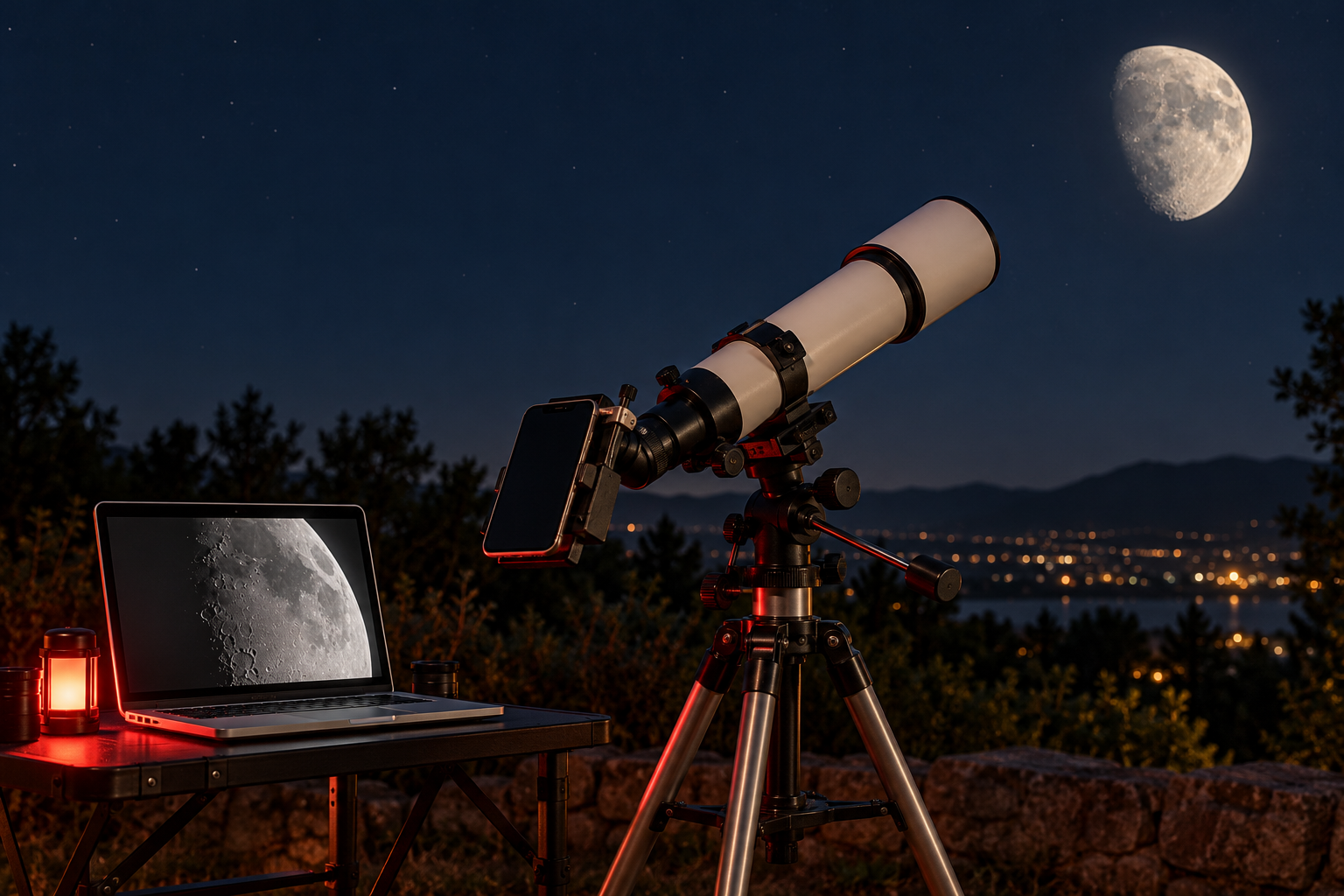
You can photograph the Moon through a telescope with an iPhone by clamping the phone over the eyepiece and recording video on your Mac. Laminar, the native macOS capture app I build for planetary, lunar and solar imaging, can use an iPhone as its camera through Apple’s Continuity Camera, record the Moon as SER video, and hand those clips to Strata for stacking and sharpening. If you already own a telescope and an iPhone, it’s an inexpensive way into lunar lucky imaging on a Mac.
It also has limits worth knowing before you buy anything. Laminar drives five families of astronomy cameras directly through their makers’ software: ZWO, Player One, QHYCCD, ToupTek and SVBONY. An iPhone arrives through Laminar’s generic webcam path instead, which the app still labels Beta, and a phone was never designed to sit behind an eyepiece. Treat this as a first step that teaches the habits a dedicated planetary camera will reward later, rather than a substitute for one.
What is afocal imaging?
Afocal imaging means photographing through an eyepiece. The telescope and eyepiece form the same view your eye would see, and the phone’s camera looks into the eyepiece in place of your eye. NASA’s Moon photography guide describes this approach, pointing a phone or camera into a telescope eyepiece, and recommends finding something to stabilize the phone, using an adapter that holds it in position, and lowering the brightness so the Moon looks gray rather than white.
The geometry is the part that trips people up. An eyepiece sends light out as narrow beams, and those beams cross at a spot a short distance behind the glass called the exit pupil. Your eye’s pupil belongs there when you observe. The phone’s camera lens belongs there when you image, centered on the telescope’s optical axis, and the adapter’s whole job is to hold it in that spot.
Light from the Moon comes to focus inside the telescope, and the eyepiece sends it back out as narrow parallel beams. Beams from the center of the Moon (solid) and its edge (dashed) cross a short distance behind the eyepiece. That crossing is the exit pupil.
When the lens sits at the exit pupil, the Moon fills the circle evenly. Move the phone sideways and part of the light misses the lens, which is why you see a crescent. Move it too far in or out and the view shrinks to a smaller circle ringed in black. Once you’ve seen each of those on screen, alignment stops being a mystery.
What do you need to photograph the Moon with an iPhone?
- A telescope on a steady mount, plus a low or medium power eyepiece (a longer focal length).
- A rigid smartphone adapter. The Celestron Basic Smartphone Adapter is a typical example: Celestron lists it for eyepieces 29 to 45 mm across and phones 56 to 97 mm wide. Any adapter that holds the phone square without sagging will work.
- An iPhone XR or later with iOS 16 or later, which is what Apple lists for Continuity Camera.
- An Apple Silicon Mac running macOS 15 Sequoia or later for Laminar.
- Strata if you want to stack and sharpen on the same Mac. It’s on the Mac App Store and runs on macOS 14.6 or later.
- A USB cable. Continuity Camera works wirelessly too, but a cable rules out wireless dropouts on a long session.
Why start with the Moon instead of a planet?
The Moon is bright, large and easy to find again when the phone shifts in its clamp. It forgives rough alignment and gives the phone plenty of light for short exposures. A planet is a different job. Through an eyepiece, Jupiter or Saturn covers a small patch of the phone’s frame, so most of every frame records black sky and the planet itself lands on only a small part of the sensor.
Begin with a crescent, quarter or gibbous Moon, when shadows along the terminator (the line between lunar day and night) show crater rims and mountains in relief. The full Moon is easy to find but looks flat, because from our point of view the sunlight hits it almost straight on.
How do you attach an iPhone to a telescope eyepiece?
Put the phone in the adapter before the adapter goes on the telescope, and take the phone out of a bulky case if it stops the clamp from sitting square. Celestron’s instructions for its Basic Smartphone Adapter follow the order most adapters use: secure the phone, line its camera up with the center of the eyepiece, then clamp the adapter over the eyepiece and tighten it.
Start with a long focal length eyepiece rather than your highest power. Lower magnification gives a larger exit pupil and a wider field, and both make alignment more forgiving. Aim at the Moon, or practice in daylight on a distant object well away from the Sun, then slide the phone until the bright circle sits in the middle of the frame and fills it evenly. If you see a crescent of light, a clipped circle or nothing at all, the lens isn’t at the exit pupil yet. Don’t try to fix that with digital zoom. Fix the mechanics first.
How do you connect an iPhone to Laminar on a Mac?
Continuity Camera is Apple’s feature that lets a Mac use a nearby iPhone as its camera, by USB or wirelessly. According to Apple’s Continuity Camera support page, the iPhone and Mac must be signed in to the same Apple Account with two-factor authentication. On the iPhone, check that Continuity Camera hasn’t been switched off under Settings > General > AirPlay & Continuity. For wireless use, both devices need Wi-Fi and Bluetooth on and need to be near each other. For USB, the iPhone has to trust the Mac. Apple also asks for the phone to be locked, stable and positioned with its rear cameras unobstructed, and notes that landscape orientation lets apps choose the iPhone automatically.
Open Laminar and pick the iPhone from its camera list. If it doesn’t show up, lock the phone again, recheck the account and connection requirements above, and try a USB cable. Apple says answering a call or unlocking the iPhone pauses the camera until you lock and mount the phone again, so turn on a Focus mode such as Do Not Disturb before a long session, and leave the phone alone once it’s aligned.
macOS can also apply its own video effects to Continuity Camera. If the Video menu appears in the menu bar while Laminar has the iPhone open, make sure Center Stage, Portrait, Studio Light and Background are off. Apple built them to frame and light a face on a video call (Center Stage keeps you centered in the frame, and Portrait blurs the background), and none of that helps a crater.
How do you focus and expose the Moon on an iPhone?
Focus with the telescope’s focuser, not the phone. Center a high-contrast feature near the terminator and turn the focuser until small crater rims look crisp in Laminar’s live view, giving the telescope a few seconds to stop shaking after each touch. If the adapter sags, rotate the eyepiece so the phone’s weight sits better, and rebalance the telescope if it needs it.
Then protect the highlights. NASA’s advice is to lower the brightness until the Moon looks gray rather than white, and it warns that some cameras’ digital zoom only crops the image. Laminar’s live histogram, log-scaled the way astronomy tools usually draw it, shows clipping before your eye does: if the brightest terrain is piled against the right edge, bring the brightness down until it pulls away. If you run out of adjustment, a screw-in Moon filter on the eyepiece cuts the light before it reaches the phone.
How many video clips should you record?
Lucky imaging works because turbulence doesn’t blur every frame equally. NASA describes it as taking lots of photos so that at least a few catch moments when the atmosphere was unusually steady. Video makes that easy, so record several short clips instead of trying to time one perfect still. Three to five clips of roughly 20 to 60 seconds each is a reasonable start. Keep the Moon in the same part of the frame, and refocus between clips if the adapter has moved.
A tracking mount makes this easier, but you don’t need one. NASA notes that with a high-power eyepiece the Moon can move out of view in as little as 30 seconds, which is another reason to start at low power. Without tracking, let the Moon drift across the field and recenter between clips. Laminar has no mount control, so nothing in the app can recenter the Moon for you. The telescope has to keep it in the field.
Here’s the whole chain, from a phone at the eyepiece to a stacked image.
Four stages take you from a phone at the eyepiece to a stacked lunar image.
How do you stack iPhone Moon video in Strata?
Strata, the planetary, lunar and solar processing app I build for macOS, takes a capture from import through analysis, stacking, sharpening, color and export in one app. It opens SER files (versions 2 and 3, 8-bit or 16-bit) and reads the small sidecar file Laminar writes beside every recording, so the Import panel shows what Laminar knew about the capture. Drop a night’s clips in together and Strata offers Analyze & Compare, so you can look at them side by side before you commit to one.
Analyze scores every frame on the GPU, measuring sharpness on the Moon itself rather than the sky around it, and draws the ranking as a quality curve. Strata suggests how many frames to keep and labels that suggestion a starting point, which is how you should treat it. My guide to how many frames to stack walks through the three-stack test I use to decide.
How Strata aligns the frames depends on what’s in them. A full-disc Moon aligns on the center of the disc. A close-up of the terminator goes through Strata’s surface route, which works from alignment points spread across the frame instead of one disc edge. Sharpen gently afterward, with wavelets or deconvolution. Phone image processing and the extra glass in an afocal setup can leave ringing, clipped highlights or a smoothed, waxy texture, and harder sharpening can’t restore detail that was never recorded. Compare the result with the original at the same scale, and stop when small craters gain definition without bright halos.
What can an iPhone at the eyepiece do, and what can’t it?
Here’s how I’d set expectations before your first night out.
The same phone and adapter can be a great teacher on the Moon and a frustrating tool on Saturn.
The last row is the useful one. A dedicated planetary camera replaces the eyepiece at the telescope’s focus, records raw frames, and gives Laminar direct control of exposure and gain through the camera maker’s software. The Laminar page lists the camera families it supports, and seeing vs. transparency explains why a clear night can still give soft results whatever camera you use.

Why does my iPhone show a crescent or a black circle?
Most first-night problems are alignment problems, and they show up on screen in recognizable ways. Work down this list before you change any settings.
Each symptom comes with its fix, roughly in the order you'll meet them.
Can you point an iPhone and telescope at the Sun?
Not without a proper solar filter. The American Astronomical Society’s eye safety guidance says solar filters must be attached securely to the front of any telescope, binoculars or camera lens, and warns that concentrated sunlight through unfiltered optics can damage the filter and enter your eyes, causing serious injury. Eclipse glasses at your eye don’t make an unfiltered telescope safe, and a filter at the eyepiece end is no substitute for one over the front aperture.
Only aim the telescope at the Sun with a solar filter made for it, secured over the front aperture so it can't come loose. That includes daytime alignment practice: pick a distant object well away from the Sun, and cap the finder scope.
The same handful of questions comes up whenever someone tries this for the first time, so here are short answers.
Common questions about photographing the Moon through a telescope with an iPhone and a Mac.
Can I use my iPhone as a telescope camera on my Mac?
Do I need an adapter to photograph the Moon through a telescope with my phone?
Can I photograph Jupiter or Saturn with an iPhone through a telescope?
Why does my phone only show a crescent or a small circle through the eyepiece?
Is an iPhone as good as a planetary camera for the Moon?
Do I need a tracking mount to photograph the Moon with my phone?
Is it safe to point my phone and telescope at the Sun?
What should you aim for on your first night?
Aim for a clean, sharp stretch of the terminator rather than a frame-filling showpiece. A modest image that keeps its crater texture is a better result than an enlarged white disc. Once the adapter stays centered and Continuity Camera connects reliably, the routine becomes familiar: mount, connect, focus, record a few clips, then score, stack and sharpen.
That routine is the real reason to start with an iPhone. It teaches the habits a dedicated planetary camera will reward later, and Laminar turns a phone you already carry into a working lunar camera on your Mac. If you want to see what else the phone can do for your observing, the iPhone and iPad astronomy software directory covers the apps worth a look.