
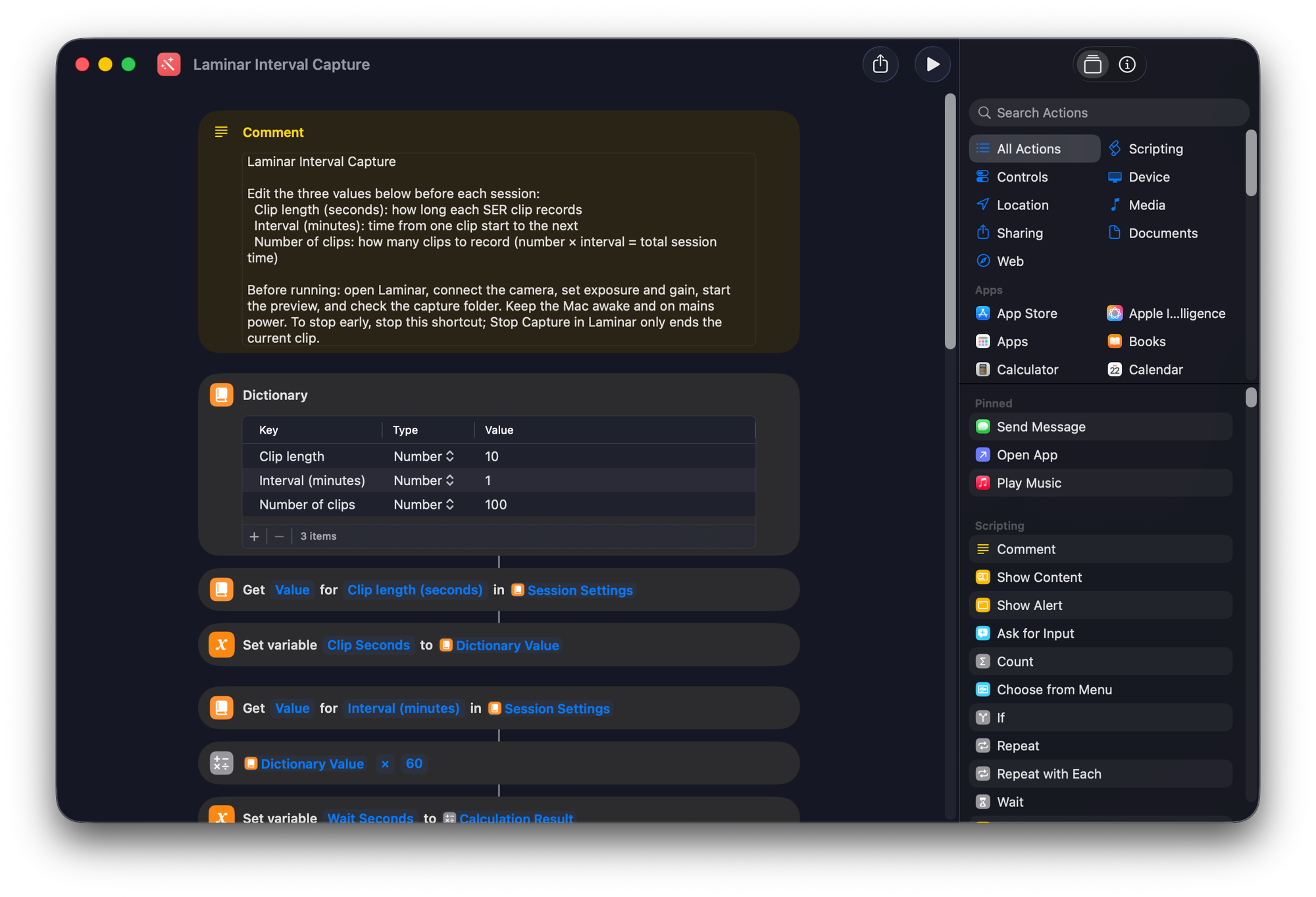
Laminar 1.7.1 can now record a timed sequence of SER clips: fifteen seconds of video every minute for two hours, or whatever cadence your target needs. It does this through two App Intents, Start Capture and Stop Capture, driven by a ready-made shortcut in Apple's Shortcuts app. The loop that counts the clips and waits between them runs in Shortcuts rather than inside Laminar.
The Laminar Interval Capture shortcut needs Laminar 1.7.1 or later and macOS 15 or later. It won't run on 1.7, because the App Intents didn't exist yet. It's Mac only: the shortcut syncs to your iPhone through iCloud, but the actions it calls live in a Mac app.
Three people asked for the same thing
The first came in June. A reader wanted frame-interval capture, one frame every few seconds assembled into an MP4, for lunar and solar time-lapse.
The second came in August, and it's the one that pushed this. A solar imager wanted fifteen-second SER clips once a minute for roughly two hours of H-alpha, then a batch run through Strata to pull the best frames out of each clip. He'd bought the full suite that day, because a Google AI answer told him Laminar already automated interval capture and kept the target centered on the sensor. Laminar did neither. I wrote back the same day with the honest version, an offer to put him on TestFlight, and a note that a refund was available if the gap was a dealbreaker.
He was gracious about it. What got me was that somewhere in the AI summary layer my app had been handed features it doesn't have, and a real person spent real money on the strength of it.
The third arrived ten days later from someone who had worked out his own spec: clip length in seconds or frames, interval in minutes, stop after a set number of clips or a total elapsed time, sequential timestamped filenames.
Three requests, three ways of describing the same session. That's enough for me to act on.
What building it into the app would cost
Laminar already records a clip against a duration limit and stops cleanly, so running that in a loop is a small amount of code. The interface around it is where the work sits.
A native interval mode needs somewhere to live in a three-column layout that's already carrying a session sidebar, a live viewport, and a camera inspector. It has to show a run in progress: which clip you're on, how long until the next one starts, how much disk you have left at this cadence, what the frame-quality readout is doing while the app records on its own schedule. Then there's the interrupted run, which has to stay legible at 2am when you're cold and your night is half gone.
In my day job I design interfaces, and the goal there is the minimum complexity required to finish the task. A sequencer panel bolted onto Laminar's current layout is not that. It's a new mode with state and error surfaces of its own, and it belongs with the bigger version 2 work I've been designing, where sequences sit alongside filter wheels and focusers and the whole run is one coherent thing. Building it now means designing that panel twice and asking you to relearn it later. I'm not putting a date on version 2, but I know what has to be in it before the sequence UI makes sense.
So the trade in front of me was months of interface work against a capability three people needed this season.
What App Intents let me ship instead
App Intents let an app publish actions that Shortcuts, Spotlight, Siri, Terminal, and AppleScript can all call. Laminar 1.7.1 publishes two of them.
Start Capture takes an optional duration in seconds, starts a SER recording with your current camera settings, and returns as soon as recording has begun. It hands back a result a shortcut can branch on: whether it started, the status, the file name, the duration. Pass no duration and it records under whatever limit the Inspector is holding. Pass one and that becomes the Inspector's seconds limit and stays there, because typing a duration into a shortcut is you setting the limit. Stop Capture is simpler, ending the clip in progress and waiting up to twenty seconds for the file to finish writing.
Underneath both, the intent, the Start Capture button, and Command R now run through the same start path in the code. There's one way to start a recording in Laminar and Shortcuts calls it, so the automation can't drift out of sync with the button as the app changes.
- Start a SER recording with the current camera settings
- Hold the exposure, gain, ROI, and capture folder you set
- Enforce the duration limit and stop cleanly
- Finish writing the file before reporting done
- Report a result the shortcut can branch on
- Hold clip length, interval, and clip count
- Count the clips and wait between them
- Decide what a skipped slot means
- Notify you when one is skipped
- Stop the run after three skips in a row
You don't have to use my shortcut
Once an app publishes intents, it stops being the only thing that can drive it. Start Capture and Stop Capture turn up anywhere macOS surfaces a Shortcuts action, and the interval shortcut I wrote is just the first thing I did with them.
Siri will call them, so you can start a clip from the far end of the scope without walking back to the keyboard. Spotlight will too, if you'd rather type than talk. In Terminal, shortcuts run "Laminar Interval Capture" fires the whole sequence, which means anything on your Mac that can run a shell command can start a capture: a script, a Keyboard Maestro macro, a Stream Deck button. AppleScript reaches them as well, if that's where your existing observatory glue already lives.
shortcuts run puts capture inside any script, macro, or Stream Deck button you already use.Or write your own. Start Capture hands back the file name, the status, and whether it started, so your logic can branch on all three. Wait for a clock time and start the run at second contact. Text yourself when a slot gets skipped, or when the last clip lands and you can go to bed. Append every file name to a note as you go and you have a session log without keeping one by hand. Drop a shorter focus-check clip into the loop every tenth iteration. None of that needed anything from me beyond the two actions.
What you can't do from a shortcut is change how the camera is set. Exposure, gain, ROI, camera selection, and the capture folder all stay in Laminar's Inspector, and the intents don't reach them. A shortcut decides when a clip starts and how long it runs; everything about how that clip looks is still yours to dial in before the run. Start Capture also returns the moment recording begins rather than when it finishes, so a loop of your own has to do its own waiting.
Every call gets logged with an [Intent] prefix. That's the first place I'd look when a shortcut you wrote isn't doing what you expected.
What happens when a clip fails
Shortcuts has no continue-on-error. If an action fails, the whole shortcut stops. For an unattended two-hour run, that's the difference between losing one clip and losing your session.
So the intents sort failures into two piles. Anything that costs you a single clip returns "not started" and lets the loop carry on to the next slot. Anything no later clip could survive stops the shortcut with a one-sentence message, and every clip you already recorded stays on disk.
The bundled shortcut adds its own guard on top. A skipped slot posts a notification, and three skips in a row stop the run rather than filling your drive with nothing.
- Already recording
- A start already in flight
- Previous clip still finalizing
- First frame not delivered yet
- No camera connected
- Preview stopped
- Capture folder unreachable
- Free disk under the 2 GB floor
- A calibration capture running
What the bench run showed
I ran this in-house on a ToupTek G3M678C at 385 fps: sixty-four clips of five seconds each, one starting every thirty seconds. Zero dropped frames in every clip, and cadence drift of about a tenth of a second per slot.
The interval is start to start, and Shortcuts is not a real-time scheduler, so each slot lands a fraction late and the error accumulates: about seven seconds of total slip over sixty-four clips. For solar and lunar time-lapse that's invisible. If you're timing to a transit or an occultation to the second, it isn't, and you shouldn't use this for that.
That's one camera on a bench, though. The intents share the same capture path for every supported vendor, so ZWO, PlayerOne, QHY, and SVBONY hardware should behave identically, but I haven't confirmed it on any of them. If you run this, tell me what you see.
What it still doesn't do
Laminar has no mount interface. Nothing in this shortcut recenters your target, and nothing in Laminar ever has. Surface tracking analyzes and draws overlays; it does not move the capture region on the sensor. Your mount has to hold the target on its own for the length of the run, and if it drifts you'll get clips of empty sky with correct timestamps.
Clip length is in seconds only. The intent takes no frame count, so the one part of that third request I couldn't cover is "record 2,000 frames per clip."
Your Mac has to stay awake, on mains power, with Laminar open, the camera connected, and the preview running. Stopping early means stopping the shortcut: hitting Stop Capture in Laminar only ends the clip that's recording, and the loop will cheerfully start the next one.
Getting it
The shortcut installs from Laminar's Help menu, or you can download it from the shortcut page along with the setup walkthrough and the pre-session checklist. Set three values before you run: clip length in seconds, interval in minutes, number of clips. Multiply the last two and you have your session length.
A native interval mode is still on the list. It gets a written spec and a design review before any interface code, so I'm not going to guess at when it lands. The three people who asked can run their sessions this season either way.