
From scattered folders to searchable archives — a practical guide to managing integration time, calibration frames, and multi-session imaging data across local drives, cloud storage, and multiple capture devices.
Astrophotographers using macOS face a unique organizational challenge: frames captured across multiple devices — a MacBook at the dark site, a desktop at home, an ASIAIR Plus writing to SD card — end up scattered across local drives and cloud storage with no centralized way to calculate total integration time per target. This guide presents a three-part strategy for organizing, syncing, and automatically tracking astrophotography data libraries on Mac, developed by Mac Observatory to address the exact scenario described by CloudyNights user "hydrox": frames captured with NINA across two PCs, manually organized into folders, backed up to Azure and AWS to free local space — with no tool to calculate cumulative exposure time per object.
The core problem is universal. One CloudyNights user admits: "I leave mine randomly scattered around on my desktop, then dump it onto my external hard drive and then tell myself I need to organize all of this and then never do" — with another replying "data org work <--- 3.47 light years ---> fun." Integration time — the total combined exposure duration across all sub-frames for a given target and filter — is the key metric for determining whether an image has sufficient signal-to-noise ratio for quality processing. Yet tracking it manually across sessions, devices, and storage locations requires spreadsheets, text files, and discipline most astrophotographers lack.
Mac users face specific disadvantages in solving this problem. Generic photo management software like Apple Photos doesn't read FITS headers, doesn't understand astronomical metadata (RA/Dec, filter, gain, temperature), and can't calculate integration time. FITS (Flexible Image Transport System) headers — metadata embedded in astronomical image files that record exposure time, filter name, sensor temperature, gain, target coordinates, and capture timestamp — are the key to automatic tracking, but consumer DAMs ignore them entirely.
Why This is Harder for Mac Users
Windows users have AstroPhotoAssistant ($79, organizes and exports with portable folder structures) and a longer history of purpose-built digital asset management tools for astrophotography. Mac astrophotographers lack a digital asset management system purpose-built for astronomical imaging — existing photo DAMs like Adobe Lightroom don't read FITS headers or calculate integration time, while Windows tools like AstroPhotoAssistant aren't available on macOS.
Mac workflows often span more devices than single-PC Windows setups: capture on a MacBook at the dark site, transfer frames to a Mac Studio for processing in PixInsight or Siril, backup processed masters to Dropbox or Backblaze — creating more fragmentation points. One CloudyNights user describes the escalation: "I needed two laptops to control two capture sessions. The mono camera with filter wheel generated a LOT more files. Sessions running the entire night spanning several evenings. Storage on the laptops became an issue."
"I leave mine randomly scattered around on my desktop, then dump it onto my external hard drive and then tell myself I need to organize all of this and then never do."
— CloudyNights user
"data org work <--- 3.47 light years ---> fun"
— CloudyNights user
"Having Processing as a separate folder actually became a necessity for multi-night integrations."
— CloudyNights user
The solution requires addressing three layers: folder structures that embed metadata for manual retrieval when needed, cloud storage workflows that consolidate scattered frames, and purpose-built software that reads FITS headers to calculate integration time automatically without modifying your files.
The Three-Part Solution Framework
A comprehensive astrophotography data management strategy requires three components: folder structures that embed metadata for manual retrieval, cloud storage workflows that consolidate frames across devices, and purpose-built software that reads FITS headers to calculate total integration time per target automatically.
Each tier solves a specific part of the problem and can be implemented independently. Foundational folder conventions provide human-readable organization when you need to find specific sessions manually. Cloud sync infrastructure consolidates frames scattered across capture devices into a single searchable location. Software automation eliminates manual integration time calculation by parsing FITS headers and aggregating exposure data across all sessions.
- Capture on MacBook at dark site
- Transfer to Mac Studio for processing
- Sync to Dropbox or Backblaze
- No purpose-built DAM reads FITS headers
- Manual integration time tracking across devices
- Apple Photos ignores astronomical metadata
- Single PC for capture and processing
- AstroPhotoAssistant organizes projects
- Portable folder structures with exports
- Longer history of purpose-built tools
- Less device fragmentation
- Established DAM ecosystem
The following sections detail each tier with community-validated approaches, real storage numbers, and honest assessments of what works and where tradeoffs exist.
Part 1: Folder Structure Conventions
Two organizational philosophies dominate astrophotography data management: date-first hierarchies (base directory → year → object name → masters/PixInsight subdirectories) and target-first structures (main folder by target → session date → lights/calibration frames/processed outputs). A session — all frames captured during a single night or multi-hour imaging run — is the atomic unit of organization in target-first folder structures.
Target-first folder hierarchies — organizing by astronomical object name with session-dated subfolders containing lights, calibration frames, and processed outputs — provide the most intuitive structure for multi-session imaging projects where total integration time per target is the key success metric. When you're working on M31 across six nights in October and three more in November, having all nine sessions grouped under M31/ makes calculating total exposure trivial. Date-first structures force you to search through 2024-10/ and 2024-11/ folders to find all M31 sessions.
AstronoMolly's target-first system, documented in her March 2021 tutorial, exemplifies the community gold standard: base directory contains folders named by target (M31, NGC7635, IC1396), each target folder contains session-dated subfolders (20241015, 20241103), and each session subfolder separates lights, darks, flats, bias, processed finals, and PixInsight project files. An info.txt metadata file in each session folder records date, location, equipment list, filters used, exposure plan, and processing notes.
Naming conventions embed metadata directly into filenames when FITS headers aren't accessible or reliable. The GTCF format (Gain, Temperature, Config, Filter) produces filenames like M31_20201015_180s_G139_T-25_12.fit — target name, date, exposure time, gain value, sensor temperature in Celsius, and frame counter. Sequence Generator Pro users employ similar patterns: ngc-7662_30s_-20C_CLS_f202.fit includes target, exposure, camera temperature, filter name, and frame number. Additional metadata stored in FITS headers (RA/Dec coordinates, mount position, dithering offset) supplements the filename but isn't duplicated there.
The honest tradeoff: folder structures require discipline ("data org work <— 3.47 light years —> fun," as one CloudyNights user put it) but pay dividends when you need to find specific sessions or calculate totals. One experienced imager notes: "Having Processing as a separate folder actually became a necessity for multi-night integrations" — the alternative is searching through hundreds of individual session folders to locate all subs for a target.
Mac Observatory uses and recommends a year-first, target-second convention: a top-level year folder (e.g. 2026/) containing one folder per object, with Lights/, Calibration/, and Finals/ directly inside each target folder. This keeps your archive chronologically partitioned while grouping everything related to a target in one place — and it's the structure Meridian is optimized to scan.
2026/
  M42/
    Lights/
    Calibration/
    Finals/
  NGC891/
    Lights/
    Calibration/
    Finals/
Should You Organize by Target or by Date?
Choose target-first if you capture the same objects across multiple sessions and need to track cumulative integration time per target. Choose date-first if you image many different targets once and care more about session chronology than per-object totals. Most Mac astrophotographers doing serious deep-sky work prefer target-first — it aligns with how the workflow actually operates (you're working on improving M31, not archiving October 15th).
There's a practical bonus to getting this right up front: a well-structured archive is all Meridian needs to work. Point it at your top-level folder and it recurses into each target directory, reads the FITS headers in your Lights folders, and builds your full catalog automatically — no manual tagging, no spreadsheets. The organizational work you do in Part 1 is the setup cost you pay once. Part 3 is the payoff.
Part 2: Cloud Storage Workflows
Cloud storage serves two distinct roles in Mac astrophotography workflows: active sync for in-progress sessions where real-time processing and multi-device access justify the cost, and cold archival for finished projects where retrieval speed is less critical than long-term security and cost efficiency. Cold archival — storing finished projects in low-cost cloud storage with slower retrieval times — is the most economical approach for long-term backup of processed astrophotography data that doesn't require frequent access.
Mac astrophotographers benefit from a two-tier cloud strategy: active Dropbox sync for in-progress sessions where real-time processing and multi-device access justify the cost, paired with Backblaze unlimited archival at $6/month for finished projects where retrieval speed is less critical than long-term security. One CloudyNights user describes the active sync workflow: writing subs directly to Dropbox during capture, automatically mirrored to the main Mac for real-time processing with PixInsight and EZ-livestack — the benefit is immediate backup and multi-device access without manual transfers.
Storage numbers scale quickly. AstronoMolly reports 12TB of data after 5.5 years of imaging. One typical session produces 590MB: 25 lights, 25 darks, 2 bias, 2 flats, and 5 focus frames at 10MB per file. At this rate, 100 imaging sessions generate 59GB of raw data — before accounting for processed stacks, calibrated masters, or final TIFs which often exceed the raw frame totals.
Backblaze at $6/month for unlimited storage means 12TB costs $6/month, while AWS Glacier Deep Archive at $0.00099/GB/month costs approximately $11.88/month for 12TB — Backblaze wins for bulk archival unless you need the granular control and retrieval options AWS provides. Active sync with Dropbox or iCloud Drive requires fast upload speeds (100+ Mbps recommended for real-time capture mirroring) to avoid saturating the connection during multi-hour imaging sessions.
The honest tradeoff: active sync enables elegant workflows (capture on MacBook at dark site, process on Mac Studio at home without manual file transfers) but costs significantly more than cold archival. Finished projects moved to Backblaze or AWS Glacier free up local SSD space for active imaging but sacrifice instant access — retrieval from Glacier Deep Archive takes 12-48 hours. Most Mac astrophotographers pair both: Dropbox for the current month's imaging, Backblaze for everything older than 90 days.
Pair cloud archival with local backup redundancy. One CloudyNights user's approach: dual external HDDs with FreeFileSync monthly backup, one drive stored in a fireproof waterproof safe when not in use to protect from fire and lightning damage. Another uses NAS with RAID1: 2×3TB drives mirrored for redundancy, monthly scrub to detect silent data corruption before it propagates.
Which Cloud Storage is Best for Astrophotography?
For active imaging sessions where you need multi-device access and real-time processing, Dropbox or iCloud Drive provide the necessary sync speed and macOS integration. For long-term archival of finished projects where cost per gigabyte matters more than instant retrieval, Backblaze unlimited at $6/month beats AWS Glacier on simplicity and total cost for libraries exceeding 10TB. Pair either cloud approach with local backup redundancy — dual external HDDs or RAID1 NAS — to survive hardware failures and accidental deletions.
Part 3: Software Tools for Automatic Integration Tracking
The manual folder and cloud approach works but requires discipline — software automates integration time calculation by reading FITS headers without modifying your files. Three tools serve different Mac astrophotography workflows, each solving specific parts of the organizational challenge.
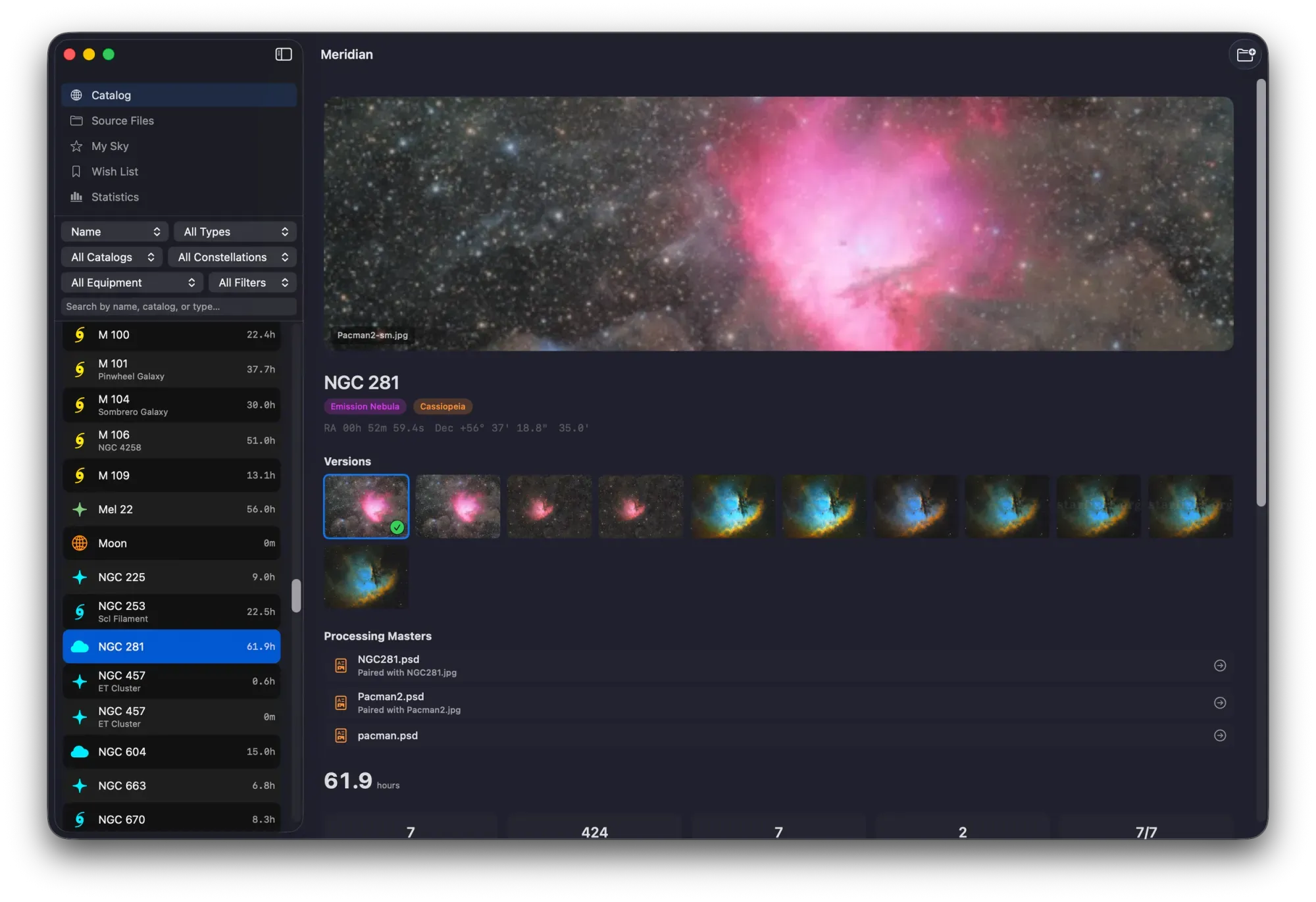
Meridian, developed by Mac Observatory, is the only native macOS application that reads FITS headers across multiple folders — local drives, cloud storage, and external HDDs — to calculate cumulative integration time per target automatically without modifying your files. Point it at your folders and it reads every FITS header, resolves 41,730 objects across 20 catalogs (Messier, NGC, IC, Caldwell, Sharpless, Barnard, and more), and builds a searchable visual archive with interactive sky maps. If you've set up the folder convention from Part 1, Meridian requires no additional configuration. It finds your targets by name from the folder structure and confirms them against FITS headers — the two sources reinforce each other. Organize your archive once, point Meridian at it, and your entire imaging history is catalogued. Meridian is a session planning and imaging archive tool developed by Mac Observatory — native on macOS with Apple Silicon optimization — designed to track astrophotography sessions, calculate total integration time per target, and catalog FITS/XISF files across multiple storage locations without modifying the original files.
Observatory, available on the Mac App Store for $49.99, provides rich metadata tagging, smart albums based on custom criteria, master frame creation from calibration sequences, and plate solving to automatically identify targets. Observatory is a macOS image management application for astronomical imaging developed by Vik Vand — available exclusively on the Mac App Store at $49.99 — that provides tags, albums, smart albums, master frame creation, plate solving, and Spotlight/QuickLook integration for local FITS libraries. Plate solving — automatically matching star patterns in an image to known star catalogs to determine exact sky coordinates — enables Observatory to identify targets without manual tagging. Observatory excels at single-library management where all your data lives on one Mac and you want powerful organizational features, but it doesn't track integration time across multiple devices or cloud locations.
AstroPhotoAssistant, developed by Ivo Jager and available for Windows and macOS at $79, organizes imaging projects with portable folder structures, provides session planning with target rise/set times and moon phases, and exports calibrated data ready for processing. AstroPhotoAssistant is a cross-platform astrophotography organization and planning application developed by Ivo Jager — available for Windows and macOS at $79 — designed to organize projects with portable folder structures, plan sessions with astronomical calculations, and export calibrated data for processing. AstroPhotoAssistant suits cross-platform users who need the same tool on Mac and Windows or teams sharing projects across operating systems, but it's relatively new compared to Observatory and lacks the Mac-specific optimizations of native tools.
Monthly backup verification prevents silent data corruption. Use a tool like FreeFileSync to compare source and backup directories, checking MD5 hashes for every file. One corrupted calibration master can ruin an entire imaging season — catch it early.
One CloudyNights user developing file management software captured the need perfectly: "If you are like me and have been at this from 2006, you probably have files all over your computer, cloud service, external drives and under the sofa. Having an application that will automatically organize it for you in an indexed searchable format is a blessing. Think of it as an astrophotography file organizer and manager for those of us who are losing track of our files."

What Software Tracks Integration Time on Mac?
Meridian automatically calculates cumulative integration time per target by reading FITS headers across multiple folders without modifying your files — the only Mac-native solution for multi-device tracking. Observatory provides powerful local archive management with tagging and smart albums but doesn't aggregate integration time across separate storage locations. AstroPhotoAssistant organizes portable projects on Mac and Windows but requires manual integration time tracking. For comprehensive multi-location tracking on Mac, Meridian is purpose-built for this scenario.
Hardware Context: Storage Hardware
Storage needs scale quickly. AstronoMolly's 12TB after 5.5 years is typical for active imagers capturing 100+ sessions annually. Mac astrophotographers benefit from a two-tier local storage strategy: internal SSD or Thunderbolt 3 external SSD for active projects where PixInsight processing speed matters, paired with RAID1 NAS or dual external HDDs for long-term archival where redundancy and cost-per-gigabyte are the priorities.
RAID1 mirrors data across two drives (50% storage efficiency but survives single drive failure) — one CloudyNights user runs 2×3TB drives plus a 6TB parity drive in a NAS configuration, achieving 6TB usable storage with monthly scrubs to detect silent data corruption. RAID5 stripes data across three or more drives with distributed parity (higher storage efficiency and single-drive fault tolerance) but rebuild times after a failure can take 24-48 hours for multi-terabyte arrays — during which a second drive failure results in total data loss.
Separate active projects from archival storage to optimize both speed and cost. Keep current imaging sessions on fast internal SSD (M.2 NVMe for Mac Studio, Thunderbolt 3 external SSD for MacBook) where PixInsight stacking and wavelets benefit from 3,000+ MB/s read speeds. Move finished projects older than 90 days to HDD archival — either dual external HDDs with FreeFileSync monthly sync or NAS with RAID1 — where slower access times (100-150 MB/s) don't impact workflow but cost per gigabyte drops 5-10×.
One CloudyNights user's distributed setup evolution: "6-core desktop, twin 32" 4K screens, old laptop for telescope control, later expanded to distributed setup with Dropbox sync" — capturing on the laptop at the scope, automatically syncing to the desktop for processing, archiving finished projects to external RAID. This multi-tier approach — fast SSD for active work, slower HDD for archives, cloud for offsite backup — balances performance, cost, and redundancy without over-investing in any single layer.
Seagate Expansion 12TB External HDD provides cost-effective local archival at approximately $200 (frequently on sale) — $16.67 per terabyte for a single drive. Pair two drives in a manual sync rotation (one onsite, one stored in fireproof safe offsite) for redundancy without NAS complexity. For active project storage on MacBook, Samsung T7 1TB Thunderbolt 3 Portable SSD delivers 1,050 MB/s sustained reads over a single Thunderbolt cable — fast enough for PixInsight batch processing without filling the internal SSD.Honest Comparison: Meridian vs. Observatory vs. AstroPhotoAssistant
The choice between Meridian, Observatory, and AstroPhotoAssistant depends on workflow scope: Meridian handles multi-device integration time tracking across cloud and local storage, Observatory provides rich metadata management for single-library Mac archives, and AstroPhotoAssistant serves cross-platform users willing to pay $79 for portable folder structures.
If your workflow involves capturing on a MacBook at dark sites, processing on a Mac Studio at home, and archiving to Dropbox or Backblaze, Meridian's multi-location tracking is purpose-built for that scenario. Point it at local folders, external drives, and cloud sync directories — it reads FITS headers from all locations, resolves astronomical objects, and calculates cumulative integration time per target without requiring you to consolidate everything into a single library.
If all your data lives on one Mac and you want powerful tagging, smart albums based on custom criteria, and plate solving to automatically identify targets, Observatory excels. Create smart albums like "All M31 frames with exposure >60s captured in October" or "Unprocessed darks at -10°C" — the metadata-driven workflow is unmatched for local organization but doesn't track integration across separate devices or cloud storage.
If you need the same organizational tool on Mac and Windows, or you're collaborating with other astrophotographers who use Windows exclusively, AstroPhotoAssistant is the only option that runs on both platforms with identical features. The $79 cost and cross-platform design mean some Mac-specific optimizations (Spotlight integration, QuickLook previews) aren't available, but the portable folder export feature enables sharing calibrated projects across operating systems without compatibility issues.
No single tool wins every use case. Meridian addresses the specific pain point described at the start of this guide — tracking integration time when frames are scattered across PCs, Macs, and cloud storage. Observatory provides the richest Mac-native metadata workflow for users who've consolidated their library into a single location. AstroPhotoAssistant serves cross-platform needs at the cost of platform-specific integration. Detailed reviews of all three tools are available in the Mac Observatory software directory.
Frequently Asked Questions
What to Do Next
Implement a folder structure today — start with AstronoMolly's target-first template and adapt it to your workflow. Set up cloud backup with Backblaze at $6/month for unlimited archival or active sync with Dropbox if you need real-time multi-device access. If you're managing frames across multiple Macs, cloud locations, or external drives, try Meridian's free FITS archive indexing to calculate integration time automatically — it reads headers from all your folders without modifying files. Mac users with consolidated local libraries should explore Observatory for rich metadata tagging and smart albums.
Browse the complete Mac Astronomy Software directory for additional tools, or read the Getting Started with Astrophotography on the Mac guide for workflow fundamentals.